

Updated by HumToSearch on October 28, 2026.
To find the background music in a YouTube video, start with its link and the time where the music is clearest. Check the video’s credits, look for a recognizable lyric, or let a recognizer listen to that section. Once you have a candidate, compare the actual recording: a correct song title can still lead to the wrong cover, remix or live version.
For a link-first starting point, try SongFinder. Its YouTube page brings URL input, audio upload and lyrics into one interface. Below, we show the link-input workflow we checked, followed by other ways to investigate the music without repeatedly submitting the same unclear clip.
Choose a route based on the clue you have
| What you have | Start here | What to look for |
|---|---|---|
| A playable YouTube link | Use the video link | A song candidate to check against the soundtrack |
| A video with credits or a track list | Read the description and comments | A title and artist for your specific timestamp |
| A few audible words | Search lyrics and check the transcript | A distinctive phrase that matches the recording |
| Music playing clearly | Capture a cleaner section | Audible music without a long spoken introduction |
| A local video file | Extract a short audio clip | A playable excerpt you can inspect or submit |
| No useful result | Ask with precise evidence | A credit, version name or original source |
1. Start with the video link in SongFinder
The appeal of a link-input tool is simple: you can begin with the YouTube page already in front of you. SongFinder gives that starting point a dedicated interface, with Audio Upload and Lyrics tabs alongside it if you have a different clue.
- Copy the public video’s URL from YouTube’s Share menu.
- Open SongFinder’s YouTube page, paste the URL and select Find Song.
- If prompted, select the requested audio source and play the section containing the music. Check which tab or window you are sharing.
- Compare any returned song with the soundtrack, then stop sharing when finished.
What our workflow check showed
On October 19, 2026, we checked the URL-input flow in the desktop ChatGPT in-app browser on macOS. No SongFinder login or payment prompt appeared before the audio-sharing step.
| Public video used | What we submitted | What appeared next |
|---|---|---|
| Cartoon, Jéja — On & On, featuring Daniel Levi, on NCS | The full YouTube watch URL | An embedded player and a prompt to share tab audio and play the video |
| Coldplay — Fix You, Live in São Paulo | A second watch URL after reloading | The same sharing and playback step |
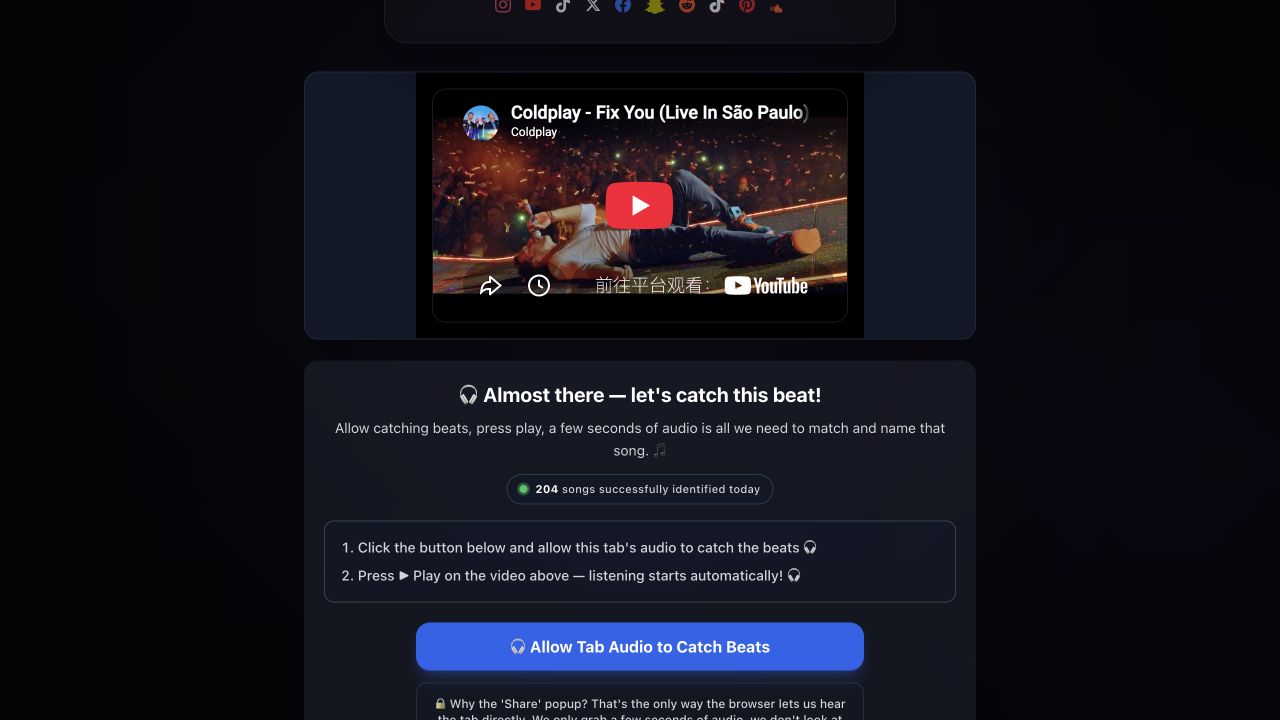
The link-input step in our October 19 check. The player title is YouTube metadata; a song-recognition result would need to be checked separately.
2. Check the credits and match them to your timestamp
Expand the video description. Look for Music, Track, Song, Credits, an artist name or a linked track list. Write down the point where your song starts before checking a long description: a vlog intro, a montage and an outro may all use different recordings.
YouTube’s automatic Music section can include song and artist information from its copyright-management systems or Audio Library. It is not a complete soundtrack list for every video. YouTube says that videos with many songs show information for the first ten, and that missing metadata or music not yet identified can prevent credits from appearing. See YouTube’s explanation of music credits.
Check the pinned comment and replies to existing questions about the music. A browser’s Find command can help with words such as song, music, track or your timestamp, but it only searches text currently loaded on the page. It is not a search of every comment.
Example: if your music begins at 3:42, a comment identifying “the intro song” may be irrelevant. Listen around 3:42 and compare that passage with the proposed track. Save both the timestamp and the candidate’s title so you do not lose the connection.
For a mix or concert, inspect chapter names and any linked set list. For stock background music, a library credit and track ID may be more useful than the video’s title. Follow the creator’s actual credit rather than guessing which library supplied it.
3. Use lyrics and the transcript as search clues
Choose a short phrase you can hear confidently. Search it in quotation marks, then repeat with a different phrase if the results do not fit. Keep the original language where possible; a translated lyric may not match the words published with the song.
The patterns below are search templates, not tested song queries. Replace the bracketed text with your own clue:
"[distinctive words you heard]" lyrics
"[candidate song title]" "[artist name]"
"[candidate song title]" live
"[video title]" soundtrack
Quotation marks request an exact phrase match. If one uncertain word blocks useful results, search the confident part on its own. Google’s search-operator guide explains exact phrases, site restrictions and exclusions.
For captioned videos, open Show transcript in the description and locate the relevant time. Clicking a transcript line jumps to that part of the video, according to YouTube’s transcript instructions. This can also reveal a spoken introduction naming a track.
Listen again before trusting a transcribed lyric. YouTube warns that automatic captions can misrepresent speech because of accents, pronunciation or background noise. A transcript is a text clue, not a music-identification result; a caption such as “[music]” does not identify the song.
4. Give the recognizer the right audio
Before another attempt, decide how the sound will reach the tool:
| Audio path | What must happen | Common reason it hears the wrong thing |
|---|---|---|
| Microphone recording | Music plays through a speaker near the microphone | Headphones keep the music away from the microphone |
| Browser tab sharing | The selected tab plays and shares its audio | The wrong tab is selected, or no audio track is shared |
| File upload | The file contains the desired music passage | A long intro, silent section or different audio track is submitted |
A screen-sharing permission does not necessarily include sound. MDN’s screen-capture documentation explains that audio support varies, and a captured stream may contain video without an audio track. Check the available sharing controls rather than assuming a visible video means the tool can hear it.
If another device can play the video, open HumToSearch’s recorder and choose Music is playing. Keep the recording page open while the other device plays a clear passage. This route records through your microphone; it does not take a YouTube URL or upload the file prepared below.
Choose a passage where the melody or vocals stand out, preferably between spoken sentences. Avoid recording silence before the song, notification sounds or two devices playing different audio. Use the recognizer’s stated duration limit rather than assuming longer is better.
After a failed attempt, change one thing: use a clearer passage, check the input source, or move to credits and lyrics. Repeating the same noisy section gives you little new information. Our music-playing-but-not-recognized checklist covers recording checks in more detail.
5. Prepare a short audio clip from a local file
If you already have a video file you can use, a short excerpt lets you hear exactly what you are submitting. Start with the original audio; converting a file does not remove speech or reveal a song name.
For readers comfortable with a terminal, this FFmpeg command extracts 20 seconds from 1:23 in a local input.mp4:
ffmpeg -ss 00:01:23 -i input.mp4 -t 20 -map 0:a:0 -vn -c:a pcm_s16le excerpt.wav
-sssets the starting position;-tlimits the output duration.-map 0:a:0selects the first audio stream.-vnexcludes video, andpcm_s16lewrites PCM audio to the WAV file.
Listen to excerpt.wav before using a service that accepts audio files. For a file with several audio tracks, check that the chosen stream contains the music. Adjust duration and format to that service’s limits. This command works on a local file, not a YouTube watch-page URL. Its options are documented in the FFmpeg manual.
We verified the command’s extraction and output format on a generated test video on October 28, 2026. That check verifies file processing, not song-recognition accuracy. If you do not already have a usable local file, use the link, playback or text methods above.
6. Ask the creator with a specific timestamp
When credits and recognition produce no useful candidate, the uploader may know the source: a licensed track, custom composition or a version absent from the recognizer’s catalogue.
Give them enough detail to answer without searching the whole video. For example:
What is the music from 3:42 to 4:05, just after the narration stops? I checked the description and pinned comment but couldn’t find a credit for that section. Do you know the track title, artist or music-library link?
For a music-identification community, include the public video link, timestamp, audible words and whether you want the composition or the exact recording. Mention which suggestions you have already ruled out. A precise request is more useful than “What is this song?” under a long video.
If the original video is unavailable and you remember only the tune, use a route designed for humming rather than submitting a hum as original music. Our humming and lyric-clue guide explains how to prepare that clue and what to try next.
Check that you found the right recording
Do not stop at a matching title. Compare these details:
- Voice and instruments: does the singer, lead sound or arrangement match?
- Version: is it a studio recording, live performance, cover or instrumental?
- Timing: can you find the same musical passage, even if the video uses only a short edit?
- Speed: does the upload sound faster or lower-pitched than the candidate? Try looking for an explicitly named edit rather than assuming the song is wrong.
Search the candidate’s title together with the artist and a version term such as live, instrumental, remix or sped up. Prefer the artist’s or label’s release information when checking a version.
For an ambiguous recording, an ISRC in release metadata can be a useful cross-check. IFPI distinguishes ISRCs, which identify recordings, from ISWCs, which identify compositions. Its ISRC FAQ also explains that database coverage may be incomplete. You need a candidate or metadata clue first; an ISRC lookup does not identify an unknown sound by listening to it.
What to do when a method fails
| What happened | A useful next action |
|---|---|
| The tool shows the video’s title but no song | Check whether playback or audio sharing is still required |
| No music credit appears | Try a lyric, clearer audio passage or a timestamped question |
| Narration covers most of the track | Look for a speech-free passage elsewhere in the video |
| A song matches, but the singer sounds different | Check covers, live recordings and remixes |
| The same excerpt fails repeatedly | Switch evidence: credits, lyrics or the creator’s source |
For more detail on the recording options available on this site, see our video-to-song guide.
Frequently asked questions
Can I find the song with only a YouTube link?
A link gives a tool a starting point, but it may still need playback or audio sharing. That was the next step in our SongFinder workflow checks. If the link is unavailable, try any saved title, lyric, credit or melody you still have.
Why does the video have no music credits?
The creator may not have added them, and YouTube’s automatic Music section does not appear on every video. Its absence is a reason to investigate other clues, not proof that a song is unidentifiable.
Can I identify instrumental background music without lyrics?
Try a clear original-audio passage, credits, a track list or a timestamped question to the creator. Describe distinctive instruments if asking people for help, but treat those descriptions as clues rather than a unique identification.
Will removing vocals or noise guarantee a match?
No. Separating or filtering audio changes what you submit, and we have not established that it improves recognition for this video. First try an unprocessed, clearer section. If you experiment with processing, keep the original for comparison.
Is SongFinder free?
Our October 19 check reached the audio-sharing step without a payment or sign-in prompt. It did not establish the limits or pricing of every feature. Check the current service details before relying on a particular upload allowance.
Start with one clear clue: the video link, a timestamp, a lyric or a clean audio section. SongFinder offers a convenient link-first route; the methods above help you investigate further and verify the recording you find.